How to Reduce JPG File Size Without Visible Quality Loss
Quality values, resizing and target-size mode explained for photos that need to fit an upload limit.
Read guideFree online file compressor · runs in your browser
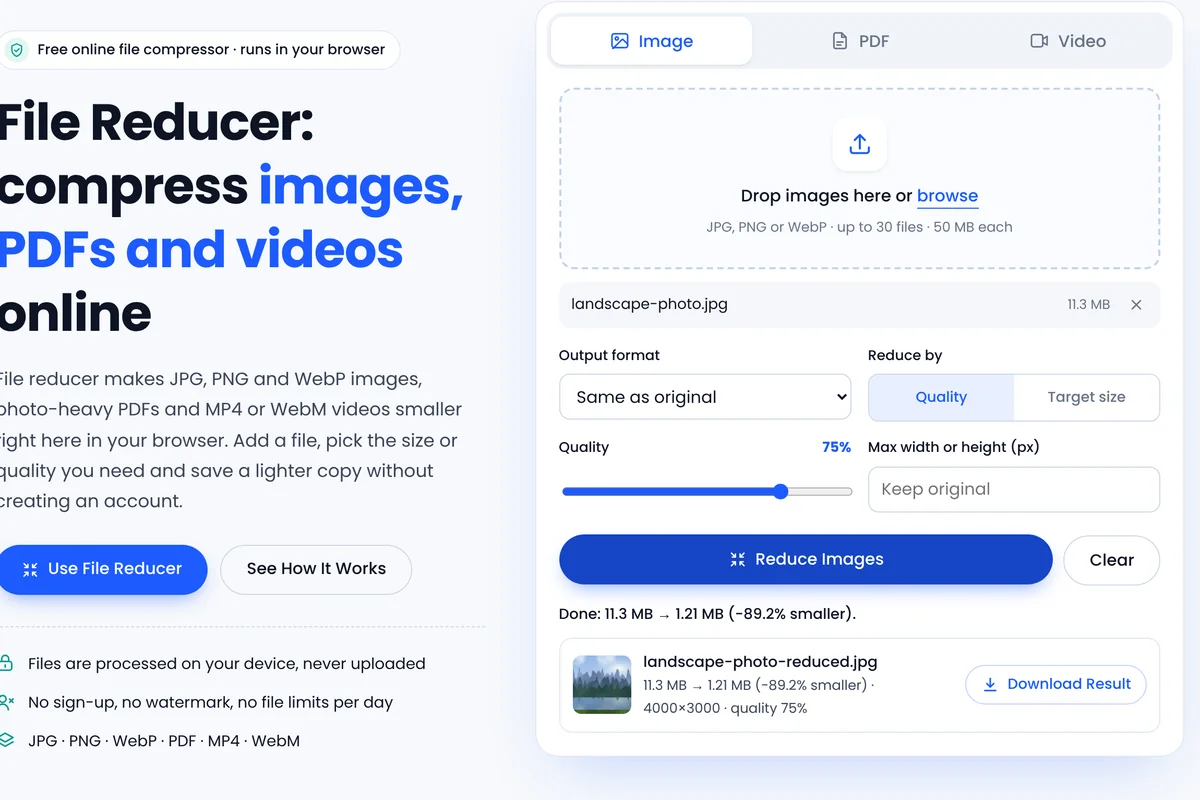
File reducer makes JPG, PNG and WebP images, photo-heavy PDFs and MP4 or WebM videos smaller right here in your browser. Add a file, pick the size or quality you need and save a lighter copy without creating an account.
Images inside the PDF are re-encoded; text, fonts and vector graphics are kept exactly as they are.
This browser lacks the compression features needed for PDFs. Please use a recent version of Chrome, Edge, Firefox or Safari.
Output format in this browser: checking. Encoding runs in real time, so keep this tab visible.
This browser cannot record video, so in-browser video compression is unavailable. Please use a recent version of Chrome, Edge, Firefox or Safari.
A browser-based file compressor that makes images, PDFs and videos smaller on your own device.
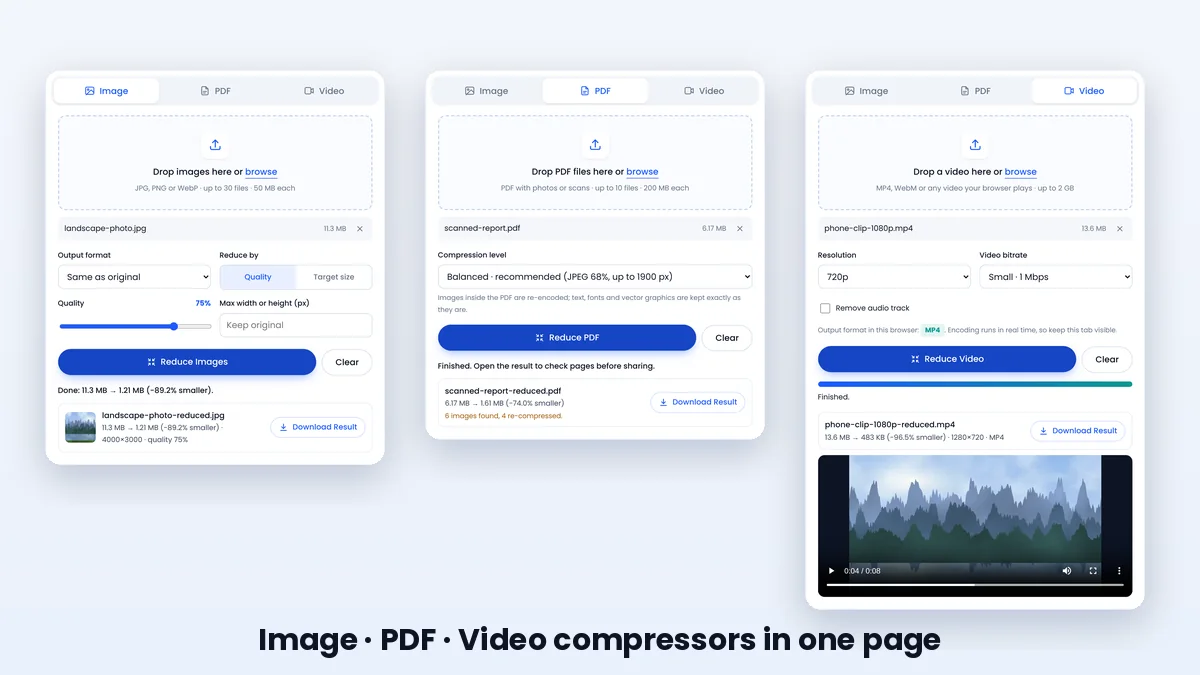
File Reducer brings an image compressor, a PDF compressor and a video compressor together on a single page. Each one uses standard features built into modern browsers, such as the Canvas API for images, the Compression Streams API for PDF data and MediaRecorder for video.
Because the work happens on your device, there is no waiting for uploads or downloads from a remote server, and your files are not stored anywhere else. You decide how far each file is reduced, and every result shows the exact size before you save it.
Every control maps to a common size problem, from strict upload portals to oversized phone videos.
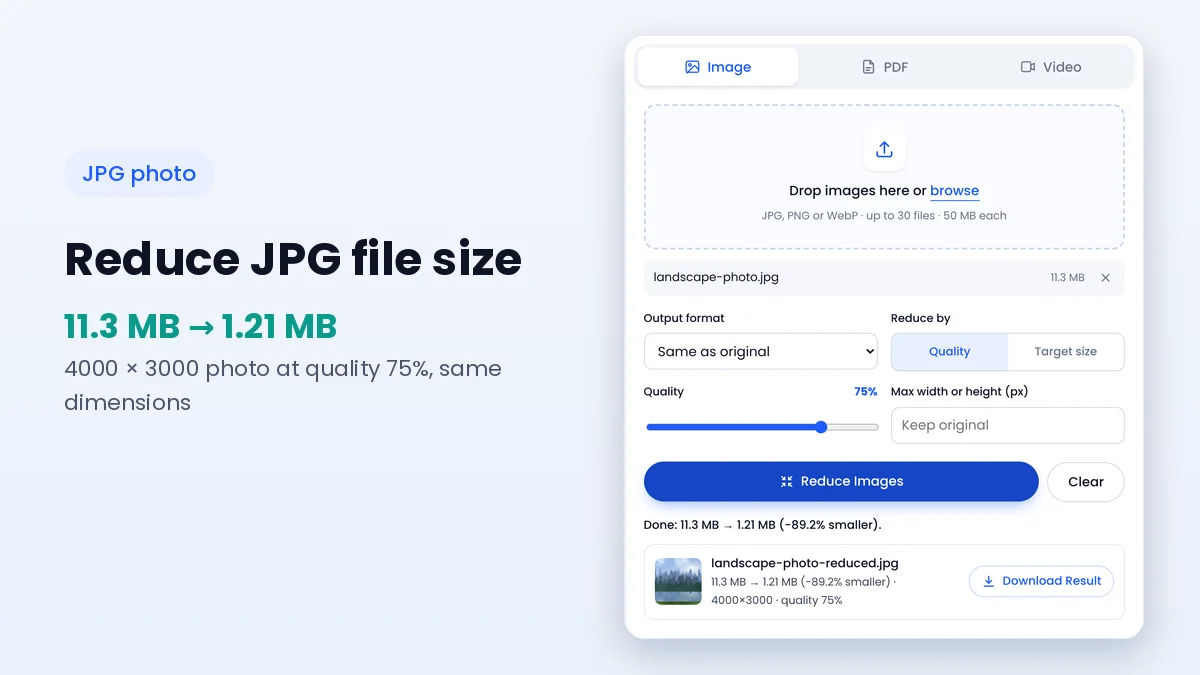
Set JPG or WebP quality from 10% to 95% and see the exact size in KB or MB for each result, together with the percentage saved.
Type a limit such as 200 KB and the image compressor finds the highest quality that fits, then scales the image only if quality alone is not enough.
Enter a maximum width or height to shrink oversized photos in the same step, keeping the original aspect ratio without stretching.
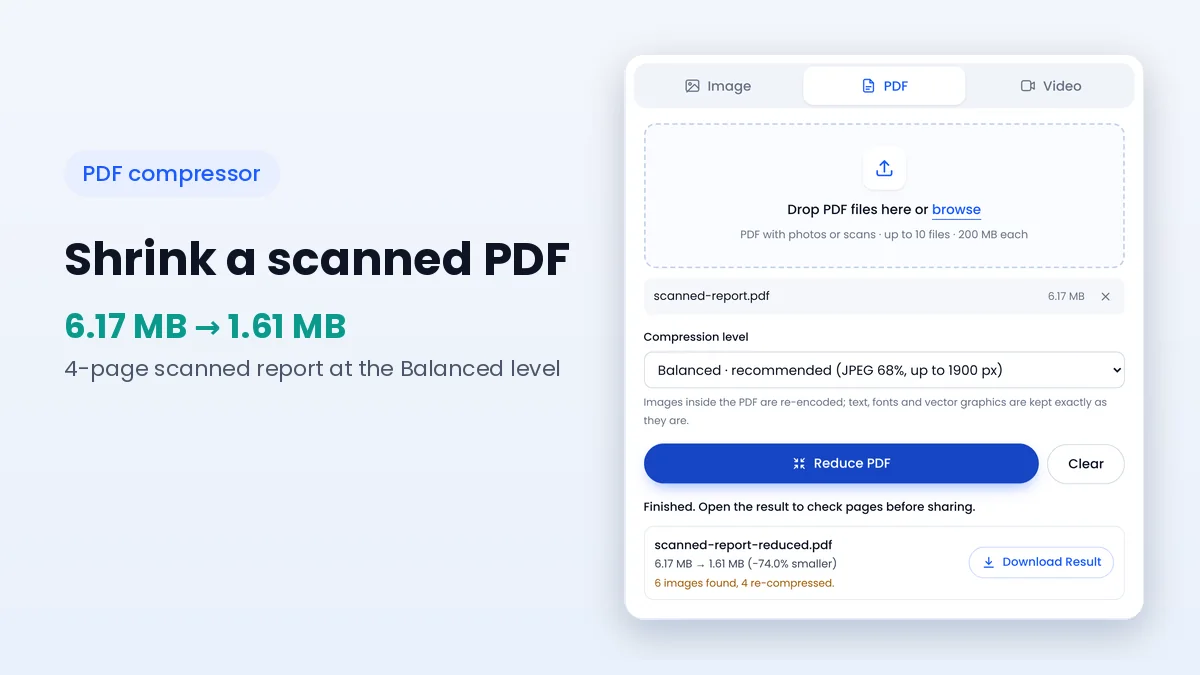
Embedded photos and scans inside a PDF are re-encoded at the level you pick, while text, fonts and vector content stay exactly as they were.
Choose 1080p, 720p, 480p or 360p and a bitrate preset to turn large recordings into MP4 or WebM files that are easier to send.
Add up to 30 images at once, review every result and download them one by one or together as a single ZIP archive.
Four short steps take a file from too large to ready to send, all inside this browser tab.
Pick the Image, PDF or Video tab, then drop a file onto the upload area or tap it to browse your device.
Select the output format, quality, target size, PDF level or video resolution that suits where the file is going.
Press the reduce button. Your browser re-encodes the file on your own device and shows the new size immediately.
Check the size and preview, then save the reduced copy. Your original file stays untouched on your device.
What each compressor accepts, what it saves and which part of the file it changes.
| Compressor | Accepts | Saves as | What gets reduced |
|---|---|---|---|
| Image | JPG, JPEG, PNG, WebP | JPG, WebP or PNG | Quality, dimensions and hidden metadata such as EXIF data |
| PDF (not password-protected) | Embedded JPEG photos and 8-bit RGB or grayscale images; text and vectors stay unchanged | ||
| Video | MP4, WebM and other formats your browser can play | MP4 or WebM, depending on the browser | Resolution and bitrate; audio can be kept or removed |
Everyday situations where size limits block an upload, a message or a quick page load.
Fit photos, scanned documents and short clips under the attachment limits of common email services.
Meet strict upload limits on job, visa, university and government portals that accept only small JPG or PDF files.
Prepare lighter website and blog images so pages load quickly and use less of your hosting storage.
Shrink videos and photos before sending them through chat apps or posting them on social platforms.
Reduce assignment PDFs, presentation images and screen recordings before submitting or sharing them.
Lighten PNG, JPG and PDF exports from design tools such as Canva before sending them to clients or printers.
The practical gains of compressing locally instead of sending files to an online service.
File reducer works in the browser you already use, so there is no setup on shared or work computers.
Processing happens on your device, which matters for IDs, contracts and other personal documents.
Smaller files take less space in cloud drives and phones, and send faster on slow connections.
Exact sizes, dimensions and previews are shown for each result, so you can choose the right balance.
How File Reducer handles the documents, photos and videos you add.
When you add a file, the browser reads it into memory on your device. The compressors re-encode that data locally and create the result as a temporary link that only exists in your tab. There is no upload step, no server copy and no file history kept by this website.
The page loads its fonts, styles and scripts from this website only and does not include advertising or analytics scripts. Closing or refreshing the tab clears every file and result from memory.
A clear picture of the results you can expect before you add a file.
The messages and situations people meet most often, with the setting that solves each one.
Step-by-step articles on compressing JPGs, PDFs, MP4 videos and design exports.
Quality values, resizing and target-size mode explained for photos that need to fit an upload limit.
Read guideWhat a browser-based compressor can do for each file type, and what to expect from the results.
Read guideWhy scans are heavy, what the Light, Balanced and Strong levels change and when a PDF cannot shrink.
Read guideShort answers about using File Reducer, supported formats and how your files are handled.
Yes. Every compressor on this page is free to use, with no account, no watermark on results and no daily credit system.
No installation is needed. File Reducer runs in a current version of Chrome, Edge, Firefox or Safari on a computer, tablet or phone.
Open the Image tab, add the JPG, keep the output as JPG and lower the quality slider, or switch to Target size and type the size you need in KB. Press Reduce Images and download the result.
It searches for the highest quality setting that still fits under the size you entered. If quality alone cannot reach it, the image is scaled down step by step until it fits, and the tool tells you when the target could not be reached.
Yes. You can add up to 30 images in one batch. Each result has its own download button, and a Download All Results button creates a single ZIP file when more than one image is processed.
Video is re-encoded in real time, so a clip takes about as long as its running time. A 90-second video needs roughly 90 seconds, and the tab should stay visible while it works.
The output format depends on what your browser can record. Recent Chrome, Edge and Safari versions can create MP4, while other browsers create WebM. The format in use is shown in the Video tab before you start.
Yes, when the PDF contains photos or scanned pages. Open the PDF tab, choose Light, Balanced or Strong and press Reduce PDF. Text-only PDFs are already compact, so they usually cannot shrink much further.
Only when you ask it to. Resolution stays the same unless you fill in Max width or height, or Target size mode needs to scale the image to reach your limit. The result line shows the final dimensions.
Yes. The layout and controls are built for touch screens. Very large images or long videos may hit the memory limits of smaller phones, in which case a computer gives better results.
No. Files are read and processed by JavaScript inside your browser tab. Nothing is sent to a server, and closing the tab discards the data.
JPG (JPEG), PNG and WebP images can be added. Results can be saved as JPG, PNG or WebP, although WebP output requires a browser that can encode it.
Any video your browser can play, which usually means MP4 (H.264) and WebM. Some MOV or HEVC files cannot be decoded by every browser and will show an error instead of a result.
PNG is a lossless format, so re-saving it rarely makes it smaller. Choose JPG or WebP as the output format, or set a smaller maximum size, to reduce a PNG noticeably.
The tool accepts images up to 50 MB each, PDFs up to 200 MB and videos up to 2 GB. In practice, the memory of your device sets the real limit for very large files.
No. Images are redrawn on a canvas before saving, so camera details, GPS location and other EXIF metadata are not copied into the reduced file.
No. Only raster images inside the PDF are re-compressed. Text, fonts and vector drawings are copied without changes, so they stay as sharp as before.
No. Encrypted PDFs are detected and left untouched, and the tool shows a message explaining why the file was not processed.
At the default settings most photos look the same on screen. Lower quality values and the Strong PDF level save more space with more visible softening, so check the preview before sharing.
Yes. PNG and JPG downloads from design tools such as Canva can be reduced in the Image tab, and PDF exports with photos can be reduced in the PDF tab.